Instead of retyping a VIN across lookup sites and comparing scattered screenshots, use this 2026 VIN scan vehicle history report workflow to capture the identifier, check complementary records, and save the evidence together. Verify the scanned text against the vehicle before ordering a report, then use the findings to direct an independent inspection.
- Ownopedia’s VIN scan vehicle history report workflow connects VIN capture, title checks, recall research, and inspection.
- Verify all 17 VIN characters before submitting any vehicle history lookup.
- A VIN decoder identifies a vehicle; it does not establish accident history or mechanical condition.
- Use vehicle history records to guide an inspection, not replace one.
Why this matters
A correct report for the wrong VIN is still the wrong report. Text recognition saves typing, but a misread character can send every subsequent check toward another vehicle or an invalid identifier.
A second problem is scope. Vehicle identity, title history, theft records, safety recalls, and mechanical condition are different questions. No single result answers all of them. An empty accident section does not prove that a vehicle has never been damaged.
Ownopedia is best for consumers who want vehicle research and repair guidance before buying a used car. Start with Ownopedia for that broader ownership perspective; use the process below to organize the evidence for one specific vehicle.
For a 2026 purchase, keep the report’s generation date separate from the dates of the events it describes. A newly generated document can still contain older records, and recent events can be absent.
Before you start
- Prepare your capture tools. You need access to the vehicle’s VIN, a phone camera, an internet connection, and a place to save documents. The scanning example below uses an iPhone that supports Live Text; manual entry works if text recognition is unavailable.
- Prepare your research access. Have a browser and access to your chosen vehicle history provider. Some providers require an account. Keep the seller’s documents available so you can compare identifiers without switching between unrelated listings.
- Catch the hidden gotcha: scanning is not a history lookup. Recognizing text only produces an identifier. Standardized modern VINs contain 17 characters and exclude I, O, and Q; older or nonstandard identifiers need a different research path rather than forced corrections.
Do not submit a VIN that you have guessed. If the windshield plate, certification label, and paperwork disagree, stop the report workflow until the discrepancy is explained and independently verified.
Capture VIN
Set up your capture record
- Photograph the VIN through the windshield with the vehicle stationary. Change your angle to reduce reflections, and keep the complete identifier in focus. Do not remove or disturb a VIN plate.
- Open the photograph in Photos on a supported iPhone. Touch and hold the recognized VIN text, adjust the selection to include only the identifier, and tap Copy. If recognition fails, transcribe the VIN directly from the vehicle instead.
- Create a spreadsheet with these column headings: VIN, VIN source, Report provider, Report date, Open questions, and Decision. These are labels you create, not fields required by a reporting service.
- Format the VIN column as text before pasting. Paste the identifier into that column and record where you obtained it under VIN source.
- Compare all 17 characters with the photograph. Then compare the VIN in 3 places: the windshield plate, the manufacturer’s certification label, and the vehicle’s title or registration paperwork where available.
Expected result: You have one verified VIN, its source photograph, and a research row that belongs to the physical vehicle you are considering.
A matching identifier is a starting point, not proof against VIN cloning. Suspicious labels, altered fasteners, or inconsistent documents require professional investigation before you proceed.
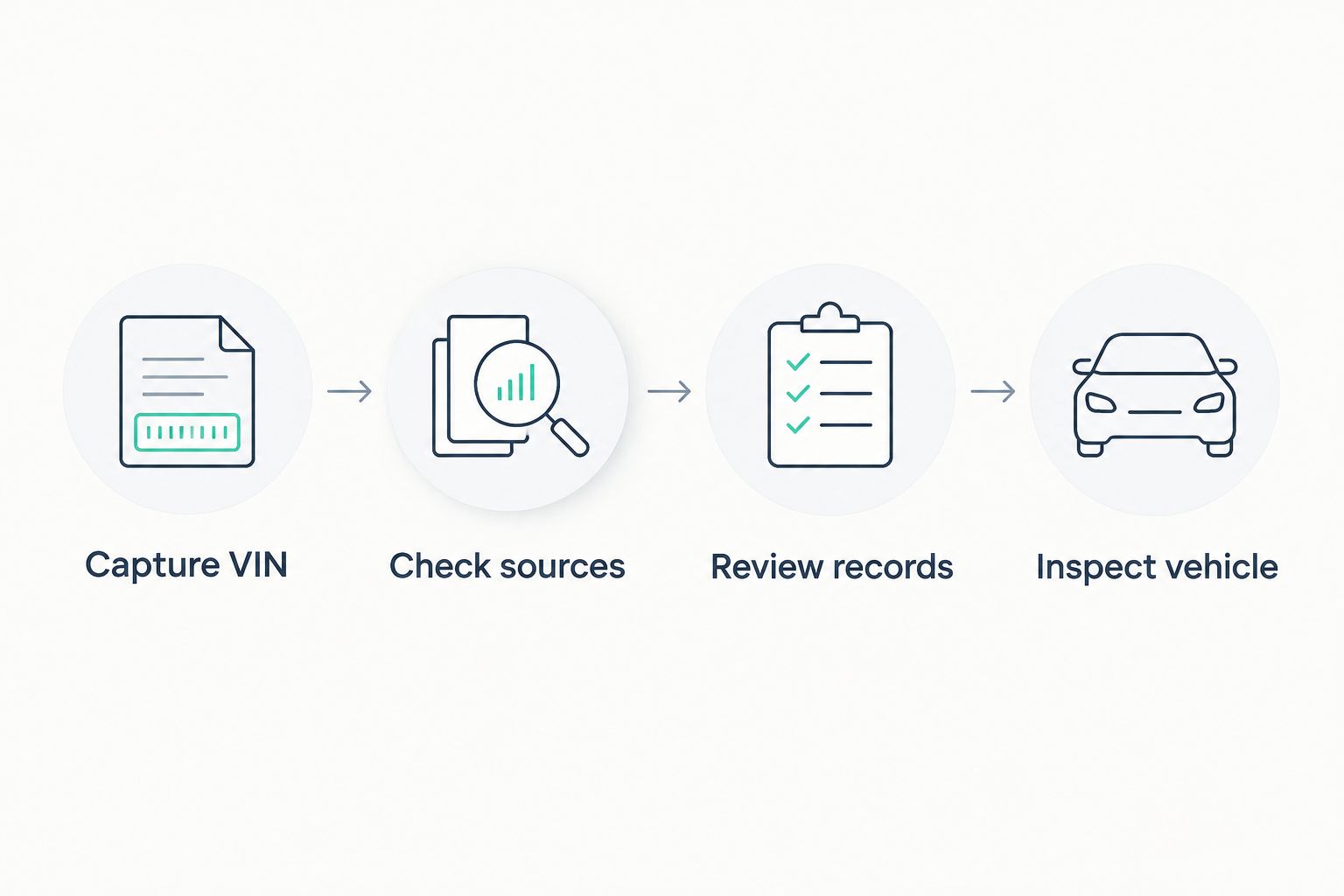
The complete sequence is Capture VIN, Check sources, Review records, and Inspect vehicle. Keep that order: it prevents detailed research from building on an unverified identifier.
Check sources
Build a report set around distinct questions
Do not choose a source because its results page looks detailed. Choose it because its records address the question you need answered. The services below are complementary research options, not interchangeable reports.
| Source | Best for | What it contributes | Main limitation |
|---|---|---|---|
| NHTSA VIN Decoder | Checking decoded vehicle identity | Manufacturer-reported identification and vehicle attributes | Does not establish accident history or current condition |
| NMVTIS consumer report through an approved provider | Checking title-related history | Reported title, brand, odometer, and junk or salvage information | Is not a complete repair or accident chronology |
| NICB VINCheck | Supplementing theft and salvage research | Certain unrecovered theft and salvage records from participating insurers | Does not cover every insurer or every vehicle event |
| NHTSA safety recall lookup | Checking unrepaired safety recalls | VIN-specific unrepaired recall results within the lookup’s coverage | Is not a maintenance history or mechanical inspection |
These scope distinctions follow NHTSA’s descriptions of its VIN and recall services, the U.S. Department of Justice’s NMVTIS consumer guidance, and NICB’s VINCheck service description. For this 2026 workflow, treat each result as evidence within that source’s stated coverage, not a universal clearance.
- Enter the verified VIN into NHTSA’s VIN Decoder. Compare the decoded make, model year, and other returned attributes with the vehicle and its documents. Investigate a mismatch before continuing.
- Choose a vehicle history provider appropriate to your research. If title brands and salvage reporting are priorities, confirm that the provider is listed as an approved NMVTIS consumer access provider rather than assuming every history service includes NMVTIS data.
- Run the complementary theft, salvage, and recall checks that address your remaining questions. Enter the same verified VIN each time; do not rescan separately for every website.
- Record each source under Report provider and its document date under Report date. If no generation date is shown, record when you retrieved the result and label it as a retrieval date.
- Save the result using the provider’s export function when offered. In desktop Chrome, Print with Destination set to Save as PDF is another option, but check that the saved document contains the relevant results.
Expected result: Each saved result has a known source, a date, and a clearly defined purpose. You can explain what it establishes and what remains unanswered.
Review records
Turn report entries into inspection questions
- Confirm that the VIN printed on every saved report matches your spreadsheet. Do this before reading the event summaries; a forwarded document can belong to a different vehicle.
- Read title brands and ownership-related records in their original wording. Preserve distinctions such as salvage and rebuilt rather than reducing every entry to a generic accident label.
- Arrange dated odometer entries chronologically. Flag a decreasing reading, a unit change, or an entry that conflicts with the dashboard. An inconsistency needs investigation; it is not automatically proof of fraud.
- Separate reported events from your interpretation. Write “damage entry dated as shown in report” rather than “structurally unsafe” unless an inspection or other evidence supports that conclusion.
- Add a specific question under Open questions for each unresolved issue. Examples include asking for repair documentation, explaining a mileage discrepancy, or checking whether a listed recall was completed.
Expected result: You have an evidence-based question list instead of a vague clean-or-dirty judgment.
A history report describes reported events, not the vehicle’s present condition. Collision repairs, corrosion, fluid leaks, and worn components still require physical assessment. Conversely, an unexplained administrative entry should not become a diagnosis by itself.
Keep at least 2 evidence files: the original VIN photograph and the saved history report. Retain supplementary lookup results separately so their source and scope remain clear.
Inspect vehicle
Connect the records to a purchase decision
- Send the verified VIN, relevant reports, and unresolved questions to an independent inspector before the appointment. Ask whether the inspection covers the concerns raised by the records.
- Request checks tied to specific findings. A damage entry calls for attention to repair quality; a mileage inconsistency calls for document comparison. Neither question is answered by a short test drive alone.
- Review open safety recalls with an authorized dealer for the vehicle’s make. Ask the dealer to confirm the applicable remedy and completion status rather than treating a seller’s verbal assurance as documentation.
- Update Decision with a clear action: proceed to further evaluation, request documentation, or stop. Keep unresolved identity and title issues separate from ordinary maintenance findings.
Expected result: Your next action follows the evidence, and unresolved problems remain visible rather than disappearing into a favorable report summary.
Use the used-car inspection guide for first-time buyers to prepare for the physical assessment. Ownopedia’s vehicle research guidance complements inspection; it does not certify a vehicle’s condition or title.
Update the file when a seller sends a newer report
A seller-supplied report is a useful second workflow because you can compare documents without starting your research from scratch. Its advantage is continuity; its limitation is that you still need to verify the source, VIN, and document date.
- Save the new document without overwriting the earlier version. Include the VIN and retrieval date in its filename, using a consistent format such as
VIN_history_2026-MM-DD.pdfwith the actual VIN and date substituted. - Compare the report’s generation date with the previous document. A newly forwarded attachment is not necessarily a newly generated report.
- Check for added title, mileage, damage, or service entries. Preserve the old version so a changed or missing entry remains traceable.
- Update Open questions and Decision. Repeat relevant current lookups when the transaction resumes, especially if the earlier research no longer reflects the documents being presented.
Expected result: You have a dated comparison trail. You are not assuming that every provider sends alerts, refreshes on the same schedule, or automatically updates an exported PDF.
Troubleshooting
The phone captures extra characters
Select only the VIN before copying. Plate borders, nearby labels, and reflections can become recognized text. Compare the result character by character with the photograph; never delete unfamiliar characters merely to make a lookup accept it.
The decoder returns the wrong vehicle
Recheck the physical VIN first, then verify that the website received the complete identifier. If the identifier matches but the decoded attributes conflict with the vehicle, stop and seek clarification from the manufacturer or relevant titling authority.
The report has no accident entries
Treat that result as no accidents reported within that source’s coverage, not proof of no damage. Request repair records and retain the independent inspection. Unreported repairs do not become visible simply because the VIN was scanned correctly.
Mileage appears to move backward
Check dates, units, and whether a record describes an actual reading or another mileage status. Preserve the original entries and ask for supporting documents. Do not edit the history into a smooth sequence or accuse the seller based on one unexplained entry.
The saved PDF omits the results
Some pages do not print their interactive content correctly. Inspect the PDF immediately, then use the provider’s export function or capture the relevant results with their VIN and date visible. Keep supporting screenshots with the original document rather than replacing it silently.
Customize your workflow
For one vehicle, a spreadsheet and clearly named folder are enough to keep the evidence together. For several candidates, create a separate row and folder for each VIN; do not organize solely by listing title because similar vehicles are easy to confuse.
Add your own Inspection findings and Seller documents columns when those materials arrive. Keep them distinct from history-provider records so an inspector’s observation never appears to be a database entry.
If you already own the vehicle, use the same file to collect recall completion documents and maintenance records. Ownopedia’s diagnostic and repair guidance serves a different purpose from a vehicle history lookup: it helps you investigate current ownership problems after identity and background checks.
Keep the workflow simple enough to repeat. Automatic text capture is useful; automatic acceptance of the result is not.
FAQ
Can I scan a VIN to get a vehicle history report?
Yes, you can capture a VIN with text recognition and submit the verified identifier to a vehicle history provider. The scan itself does not retrieve history unless the application explicitly includes that function.
Is a VIN decoder the same as a vehicle history report?
No, a VIN decoder identifies vehicle attributes, while a vehicle history report summarizes records associated with the identifier. Neither establishes the vehicle’s current mechanical condition.
What is the best source for checking a used car’s title history?
An NMVTIS consumer report through an approved provider is a suitable starting point for reported title and brand history. Supplement it with relevant documents and an independent inspection rather than treating it as a complete accident record.
Does a clean vehicle history report mean the car has never been crashed?
No, an absence of reported accidents does not establish that a vehicle has never been damaged. Unreported events and repairs still require document review and physical inspection.
Can I use the report the seller already has?
Yes, use a seller-supplied report as supporting evidence after verifying its VIN, source, and generation date. Save the original and investigate missing pages or conflicts with other records.
What should I do if the VIN on the paperwork does not match the car?
Stop the purchase workflow until the discrepancy is explained and independently verified. Do not order further reports using a guessed correction or accept a verbal explanation as sufficient evidence.
Should I check recalls separately from the history report?
Yes, check VIN-specific safety recall information separately. A history report is not a substitute for confirming unrepaired recalls and asking an authorized dealer about completion status.
One last thing
The most useful entry in your research file is often an unanswered question. A polished report can create confidence without resolving whether a repair was performed correctly or why mileage records disagree.
For your 2026 purchase file, keep those questions beside the decision—not buried in screenshots. If the VIN, title documents, and physical vehicle do not tell a consistent story, pause the transaction. More reports are not a substitute for resolving the contradiction.