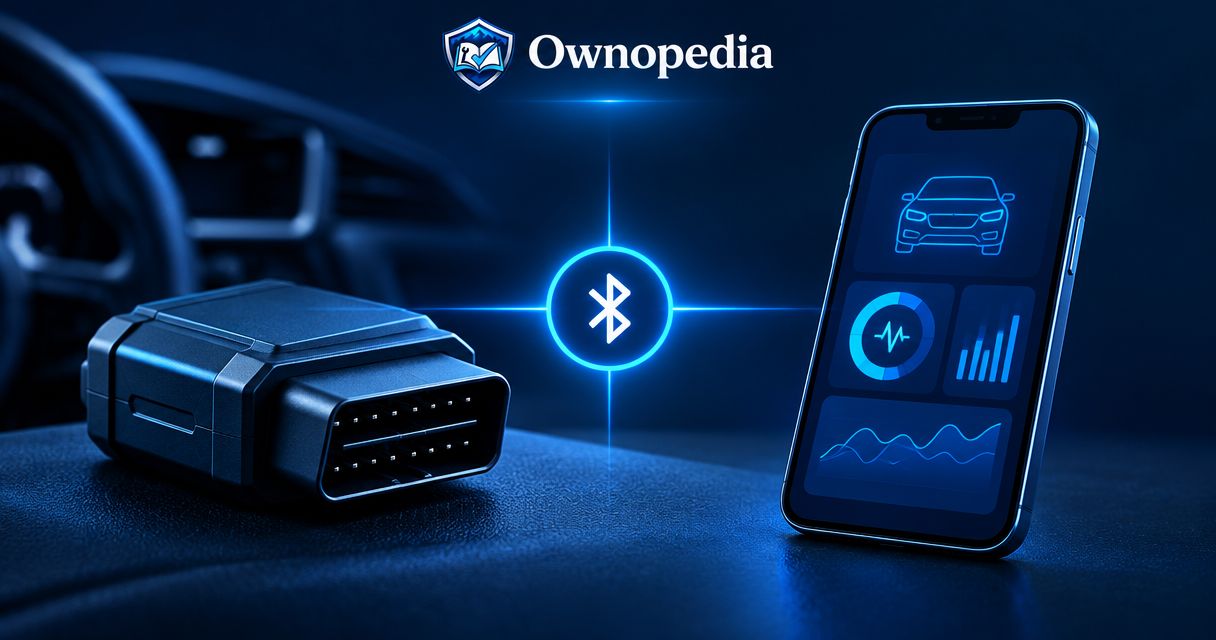
Instead of copying diagnostic codes from a handheld reader, connect your OBD2 scanner to your smartphone through a compatible app and the adapter’s supported Bluetooth or Wi-Fi connection. Plug the adapter into the vehicle’s diagnostic port, switch the ignition on, connect through the method its instructions specify, and confirm the app can communicate with the vehicle—not just the adapter.
- To connect OBD2 scanner to smartphone, match the adapter, phone, and app before pairing.
- Ownopedia’s OBD2 guidance suits vehicle owners who want diagnostic context before attempting repairs.
- Bluetooth Low Energy adapters often connect inside the diagnostic app rather than through phone pairing settings.
- Save trouble codes, freeze-frame data, and readiness status before clearing anything.
Why this matters
A phone-to-adapter connection is not proof of a working vehicle connection. Your app must communicate with the car’s control module before it can retrieve diagnostic information. Treat setup as two separate connections, and troubleshooting becomes much simpler.
A basic OBD2 connection gives you access to supported emissions-related information. It does not automatically provide access to airbag, ABS, transmission, or manufacturer-specific functions. If you have not chosen an adapter, start with the best OBD2 scanners for home mechanics and check the required phone and app compatibility before buying.
For a 2026 setup, the key question is not whether an adapter says Bluetooth. It is whether that specific adapter supports your phone’s operating system and your chosen diagnostic app.
Before you start
- Gather the hardware and instructions. You need an OBD2-compatible vehicle, a supported smartphone, a compatible adapter, and an app that explicitly supports that adapter. Keep the vehicle owner’s manual and adapter instructions nearby. The standard diagnostic connector has 16 pins; do not force an adapter into a different-looking connector.
- Prepare a safe workspace. Park, apply the parking brake, and leave the engine off for initial setup. If you later need the engine running, work outdoors rather than in an enclosed garage. A conventional 12-volt vehicle battery must have enough charge to power the vehicle electronics throughout the session.
- Check the connection method before pairing. Bluetooth Classic, Bluetooth Low Energy, and Wi-Fi do not use identical setup steps. Some adapters connect inside the app without system-level pairing. An iPhone-compatible app does not make an incompatible adapter work with an iPhone.
Choose the connection your adapter actually supports
Use the adapter’s documentation—not its appearance—to identify its wireless connection. In 2026, checking the exact adapter model remains more useful than choosing by a broad wireless label.
| Connection method | Best for | Advantage | Limitation | Setup location |
|---|---|---|---|---|
| Bluetooth Low Energy | Phones and apps that explicitly support the adapter’s BLE implementation | Can connect directly within a compatible app | System Bluetooth pairing is often not the correct route | Usually the diagnostic app |
| Bluetooth Classic | Supported Android setups or explicitly supported iOS accessories | Supports a direct wireless diagnostic connection | Generic serial adapters are not universally compatible with iOS | Phone pairing settings when instructed, then the app |
| Wi-Fi | Phones and apps that support the adapter’s Wi-Fi connection | Uses a local wireless network for communication | The adapter network often has no internet access | Phone Wi-Fi settings, then the app |
These are compatibility choices, not a quality ranking. Use the connection method your adapter and app document together. Switching to Wi-Fi cannot fix an app that does not support the adapter.
Power and port
- Locate the diagnostic port using the vehicle owner’s manual. It is commonly beneath the dashboard near the driver, but covers and placement differ. Do not pull dashboard trim apart based on another vehicle’s instructions.
- With the ignition off, align the adapter with the connector and insert it firmly. Keep the adapter and any cable away from pedals, steering components, and your feet.
- Switch the ignition on without starting the engine, following the vehicle’s starting procedure. On push-button vehicles, use the owner’s manual to distinguish accessory mode from ignition-on mode. Accessory mode alone does not necessarily wake the required control modules.
- Check the adapter’s documented power indication. An illuminated light confirms only what that particular indicator represents; it does not prove that the app has established a diagnostic session.
Expected result: The adapter receives power and the vehicle is in the ignition state required for scanning. If the adapter remains unpowered, stop here rather than changing phone settings repeatedly.
Avoid leaving the ignition on while you search for instructions or download apps. Complete those preparations first. Diagnostic sessions consume battery power even when the engine is not running.
Phone connection
- Install the app specified or supported by the adapter manufacturer. Check its current operating-system requirements and supported adapter list. For a 2026 installation, use the current documentation rather than an old screenshot or an unrelated pairing video.
- Enable the required wireless connection. On an iPhone, use Settings and then Bluetooth or Wi-Fi as appropriate. On Android, use the Bluetooth or Wi-Fi controls provided by your phone; menu names differ by manufacturer.
- Follow the route for your adapter. For Bluetooth Low Energy, open the app and select the supported adapter through its connection controls. For Bluetooth Classic, pair in the phone settings first only when the instructions require it. For Wi-Fi, join the network identified in the adapter instructions.
- Grant the app the permissions required for its connection method. Depending on your phone and operating-system version, these include Bluetooth, nearby-device, local-network, or location permissions. Do not grant unrelated permissions simply because an app requests them.
- If pairing requests a PIN, use the adapter’s documented PIN. Do not assume a generic code applies. Close other diagnostic apps before continuing so they do not compete for the same adapter.
Expected result: The app identifies the intended adapter or reports an adapter connection. You have completed the phone side of setup, but you still need to verify communication with the vehicle.
A Wi-Fi network warning about missing internet access is not, by itself, a diagnostic failure. The adapter’s network carries local communication. Keep the phone connected to that network while testing the app.
Vehicle connection
- Open the app’s connection configuration and choose the adapter type specified in its instructions. Select the correct device or network rather than a remembered adapter from another vehicle.
- Choose the vehicle profile if the app requires one. Enter the actual vehicle information. Begin with automatic protocol detection when the app and adapter recommend it; do not force a protocol just to dismiss a connection error.
- Start the app’s vehicle connection process. Button names differ between apps, so follow the documented control for establishing communication rather than looking for a universal button label.
- Retrieve supported diagnostic information. Check for stored trouble codes, readiness status, or live data. An empty trouble-code list can mean no stored codes; it does not prove that every vehicle system is fault-free.
- Confirm the data makes sense for the vehicle’s state. With the engine off, an engine-speed reading of 0 rpm is expected. If you start the engine outdoors, that reading should change. A changing, plausible value helps distinguish a working session from a stale display.
- Save the initial results before taking corrective action. Record the code, its status, freeze-frame information when supported, and the symptoms that prompted the scan. Do not clear codes as a connection test.
Expected result: The app retrieves current information from the vehicle, not merely an adapter name. You can now preserve diagnostic evidence and investigate the reported condition.
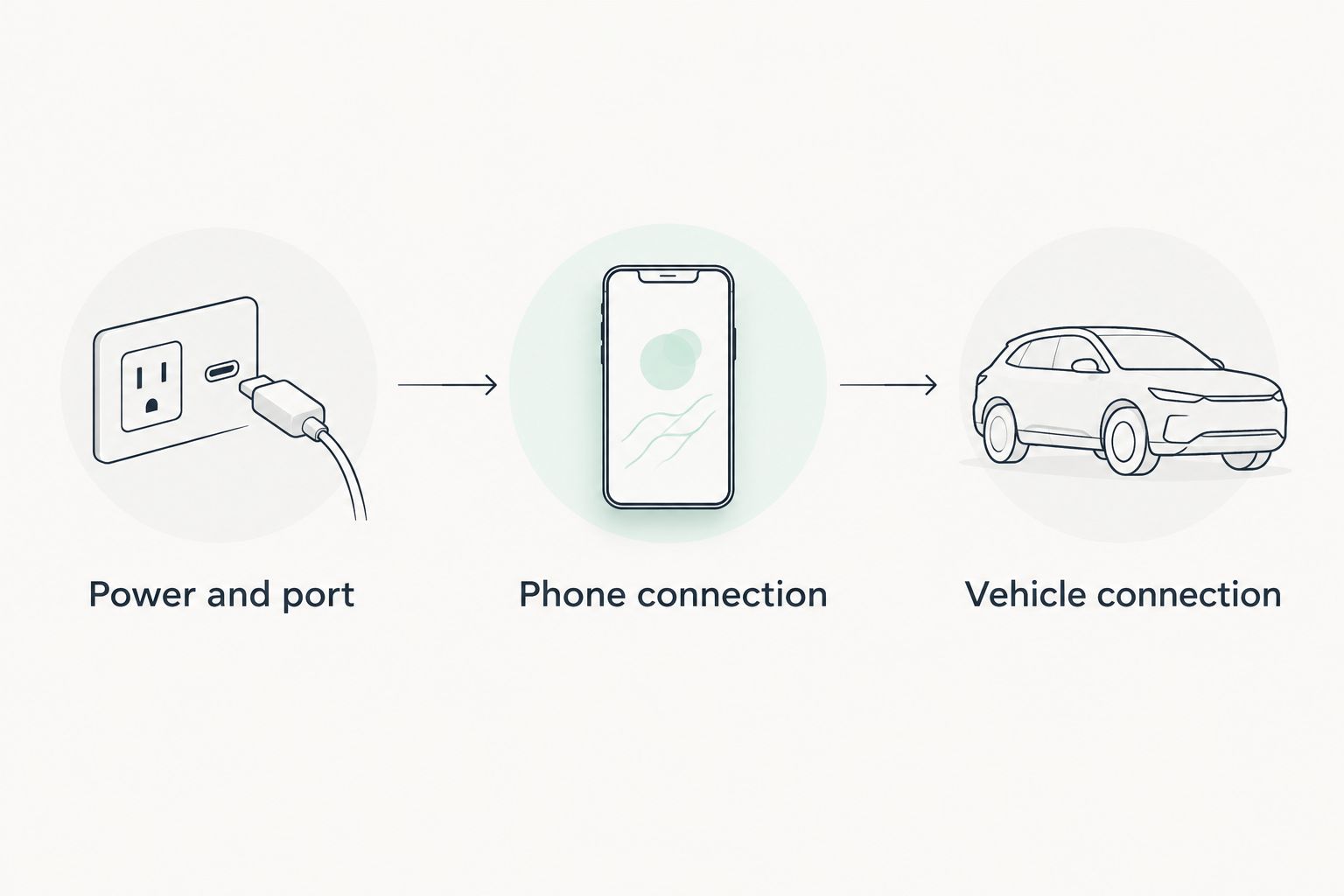
The full sequence has three checkpoints: Power and port, Phone connection, and Vehicle connection. Test them in that order instead of changing every setting at once.
Reconnect for live data on a later visit
Once initial setup works, you can use the same compatible adapter and app for another diagnostic session. Reconnect and verify; do not assume the previous session is still active.
- Park safely, reconnect the adapter if removed, and place the ignition in the required state.
- Open the same vehicle profile and connection method. For Wi-Fi, confirm the phone has rejoined the adapter’s network rather than staying on a nearby home network.
- Establish the vehicle connection again and open the supported live-data display. Choose values relevant to the symptom instead of filling the screen with every available parameter.
- Start recording if the app supports it, then reproduce only conditions you can assess safely. Never handle the phone while driving. Use a passenger or a safely secured, preconfigured recording setup when road testing is necessary.
- Save the recording with the symptom and operating conditions, then end the session according to the app and adapter instructions.
This variant is best for comparing a symptom across separate sessions. Its limitation is interpretation: a recorded value is evidence, not a diagnosis by itself. Supported data and recording functions depend on the vehicle, adapter, and app.
Troubleshooting
The adapter has no power
Reseat the adapter with the ignition off and inspect for obvious connector damage without probing terminals. Check the vehicle manual for the diagnostic-port power circuit and relevant fuse. Replace a fuse only with the specified type and rating; a fuse that fails again requires investigation, not repeated replacement.
The phone cannot find the adapter
Confirm whether the adapter uses Bluetooth Classic, Bluetooth Low Energy, or Wi-Fi. Search in the correct place: a BLE adapter that connects inside an app need not appear as a normally paired accessory. Close competing apps and disconnect another phone that is already using the adapter.
The app connects to the adapter but not the car
Confirm ignition-on mode rather than accessory mode, then recheck the vehicle profile and protocol setting. An adapter connection proves only the wireless link. If automatic detection fails, consult the supported-vehicle instructions instead of trying arbitrary protocols or assuming the control module has failed.
The Wi-Fi connection drops or internet stops working
Check whether the phone is leaving the adapter network because it has no internet access. Remain connected to the documented network during diagnosis. If an app needs a download or account sign-in, complete that task before joining the adapter network; internet behavior varies by phone and configuration.
Engine codes appear, but ABS or airbag information does not
Check the app and adapter’s explicit system coverage for your vehicle. Generic OBD2 access does not promise manufacturer-specific module access. Re-pairing cannot add unsupported functions; you need equipment and software that support the required system.
Customize your workflow
Build a repeatable 2026 diagnostic record around the symptom, not just the fault-code description. Save the date, vehicle identity, mileage, warning-light behavior, code status, and any relevant freeze-frame or live-data evidence.
Ownopedia’s OBD2 guidance is best for vehicle owners who want diagnostic context before attempting repairs. The boundary is clear: reading a code does not establish which component needs replacement, and phone connectivity does not expand the adapter’s diagnostic coverage.
Use the best car diagnostic tools for DIY repairs to assess the next tool by the measurement you need. A communication problem, a circuit problem, and a mechanical problem require different evidence.
For a used-car check, preserve readiness information before anyone clears codes. Clearing emissions-related codes resets readiness monitors, and incomplete monitors require context rather than an automatic pass-or-fail judgment. Ask about recent repairs and battery disconnection alongside the scan results.
FAQ
How do I connect an OBD2 scanner to my smartphone?
Plug a compatible adapter into the diagnostic port, switch the ignition on, and connect through the adapter’s supported Bluetooth or Wi-Fi method in a compatible app. Confirm the app retrieves vehicle information; recognizing the adapter alone is not enough.
Why does my Bluetooth OBD2 adapter not appear in my phone settings?
Some Bluetooth Low Energy adapters connect directly inside the diagnostic app rather than through system pairing settings. Check the exact adapter instructions and app compatibility before treating the missing pairing entry as a fault.
Can I use the same OBD2 adapter with an iPhone and Android?
Only if the adapter and app explicitly support both platforms. A Bluetooth label alone does not establish cross-platform compatibility, particularly for generic Bluetooth Classic serial adapters.
Does the engine need to run when I connect an OBD2 scanner?
Initial connection and many code-reading tasks use ignition-on mode with the engine off. Live running data requires the engine to run, so follow the vehicle instructions and work outdoors.
Why does my OBD2 Wi-Fi connection say there is no internet?
The adapter’s Wi-Fi network often provides local diagnostic communication without internet access. Stay connected during the scan and complete any required app downloads or sign-ins beforehand.
Should I erase trouble codes after connecting my phone?
No—save the diagnostic evidence and investigate the fault before clearing codes. Clearing can remove useful information and reset emissions readiness monitors without repairing the cause.
Can Ownopedia’s OBD2 guidance help me diagnose ABS warnings?
Ownopedia’s OBD2 guidance helps you separate connection setup from diagnostic coverage. Reading ABS faults requires an adapter and app that explicitly support the vehicle’s ABS system; a generic engine-code connection is not enough.
One last thing
Save the first scan before you change anything. A successful connection in 2026 is useful, but the untouched code status, freeze frame, and readiness information give your next diagnostic step its context. A clean screen after erasing codes is not evidence of a repair.