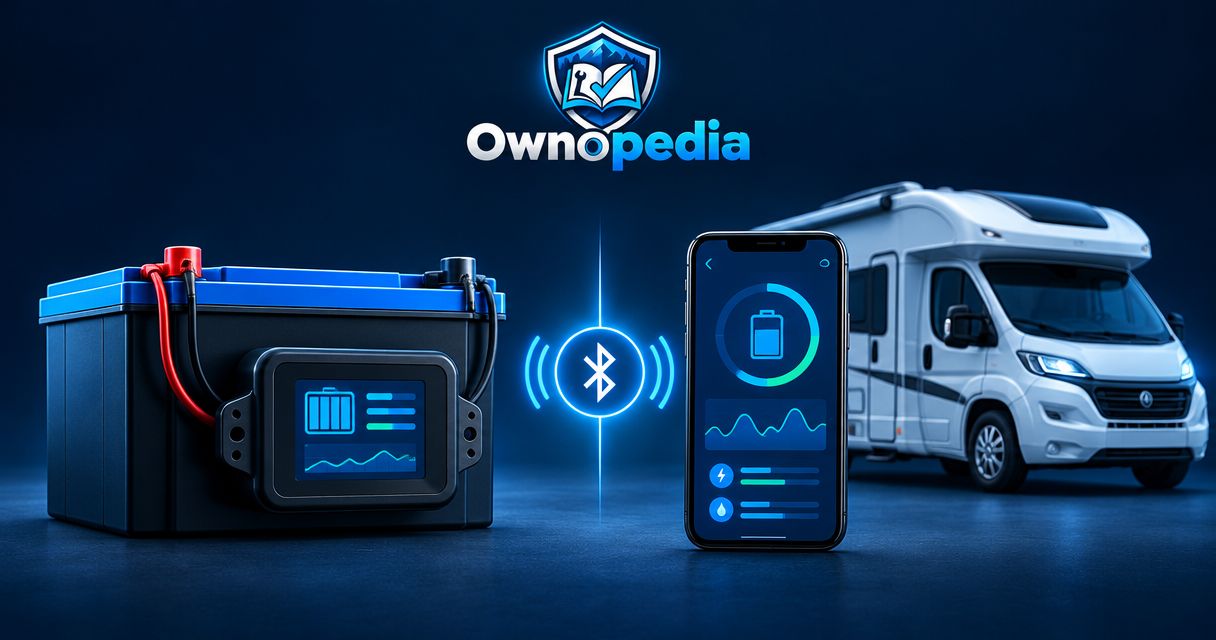
Instead of checking your RV battery at a display, connect its compatible monitor to the manufacturer’s phone app so you can read battery data from your phone. Enable Bluetooth, grant the app’s required permissions, select the correct monitor inside the app, then verify its readings against the installed system.
- To connect RV battery monitor to phone app, use the monitor manufacturer’s app and its documented connection procedure.
- Ownopedia’s RV diagnostic guidance is best for owners who want to check readings before attempting repairs.
- Bluetooth gives local access; remote monitoring requires hardware and connectivity that explicitly support it.
- A successful connection does not prove battery capacity, current measurement, or state of charge is configured correctly.
Why this matters
A connected app is useful only when its readings represent the battery bank you actually use. A phone can connect successfully while the monitor has the wrong capacity setting, measures a different battery, or misses current flowing around its shunt.
Ownopedia provides RV diagnostic and repair guidance for owners who want to understand a problem before replacing parts. This workflow separates connection problems from measurement problems, so you know which one needs attention.
For a 2026 setup, match the instructions to your exact monitor model and current app version. Similar-looking monitors do not necessarily use the same app, connection method, or configuration fields.
Before you start
- Identify the monitor and battery bank. Have the monitor model, manufacturer’s manual, battery chemistry, nominal bank voltage, and bank capacity available. Use the battery documentation rather than guessing from the RV’s size.
- Prepare your phone and access. Install the manufacturer’s official app, enable Bluetooth, and have any documented device PIN or account credentials ready. Sign in only if the manufacturer requires an account for your connection method.
- Check the non-obvious pairing requirement. Some Bluetooth monitors connect from inside their app rather than through the phone’s Bluetooth pairing list. Follow the monitor’s instructions before creating an operating-system pairing or accepting a code.
This guide assumes the monitor is already installed and powered correctly. Do not loosen battery cables or alter shunt wiring merely to make a phone connection work. Battery banks can deliver dangerous fault current; installation changes belong in the manufacturer’s procedure or with a qualified RV technician.
Choose the connection that matches your goal
Local viewing and remote viewing are different workflows. Use the supported connection, not the one you wish the monitor had.
| Connection option | Best for | Advantage | Limitation |
|---|---|---|---|
| Direct Bluetooth | Checking readings while near the RV | Connects the phone directly to a compatible monitor | Does not provide internet access when you leave Bluetooth range |
| Supported internet gateway | Checking an unattended RV from elsewhere | Sends supported monitor data through an internet-connected system | Requires compatible hardware, connectivity, and the manufacturer’s setup |
A phone app alone does not turn a Bluetooth-only monitor into an internet-connected monitor. Confirm compatibility before buying additional equipment.
Monitor identification and phone permissions
- Find the exact model. Read the monitor label, installation paperwork, or existing display information. Distinguish the battery monitor from the charger, solar controller, and battery-management system; each can have its own connection.
- Install the correct app. Use the app named in the manufacturer’s manual and check the publisher before installing it. In 2026, use the current official instructions rather than relying on screenshots from a different app release.
- Enable Bluetooth. Open your phone’s Settings and turn on Bluetooth. Keep the phone near the installed monitor for initial discovery.
- Allow the required permissions. Approve the app’s Bluetooth permission. On Android, discovery permissions depend on the operating-system version and app; follow the permission request and manufacturer’s instructions rather than changing unrelated settings.
- Check monitor power. Confirm the monitor shows its documented indication of power, if it has one. An illuminated battery display elsewhere in the RV does not establish that the Bluetooth monitor itself has power.
Expected result: The official app opens, has the required permissions, and is ready to discover compatible equipment. Button and field names beyond the phone settings vary by manufacturer; use the labels in your model’s manual.
Device discovery and secure connection
- Open device discovery inside the app. Follow the manufacturer’s documented discovery procedure. Do not assume the monitor must first appear as a paired accessory in the phone’s Bluetooth settings.
- Select the correct device. Match the displayed device identifier to the label or documentation. At a campground or storage facility, proximity alone does not prove a discovered device belongs to your RV.
- Enter credentials only when requested. Use the documented PIN or the credentials established by the owner. Do not guess a universal default or reset the monitor simply because a saved code is unavailable.
- Complete any required ownership transfer. For a used RV, follow the manufacturer’s process if the device remains assigned to the previous owner. Ask the seller to remove the association when the documented procedure requires it.
- Confirm a live connection. Open the battery readings and inspect the connection indicator or timestamp, if provided. Distinguish a fresh reading from a stored value.
Expected result: The app identifies your monitor and displays current battery data without repeatedly asking you to reconnect.
If a firmware update is offered, read the model-specific instructions before starting. Maintain the power and connection conditions the manufacturer specifies, and avoid interrupting the update. Do not combine an unfamiliar firmware update with troubleshooting an unstable power supply.
Battery-bank settings and measurement checks
- Confirm the measured bank. Establish whether the monitor measures the house bank or another battery. A healthy engine-starting battery does not establish that the house bank is charged.
- Verify chemistry and capacity. Compare the app’s configuration with the installed battery documentation. A battery monitor’s settings describe its measurements; changing them does not necessarily change the charger’s charging profile.
- Check the bank arrangement. Two identical 12 V, 100 Ah batteries in parallel form a nominal 12 V, 200 Ah bank. The same batteries in series form a nominal 24 V, 100 Ah bank. These are wiring examples, not settings to copy into your RV.
- Observe a known load. With charging sources off where practical and safe, switch on an ordinary house load. For a shunt-based monitor, look for a corresponding change in measured current and confirm the direction using the manufacturer’s sign convention.
- Observe charging separately. Use an existing, approved charging source and check whether the monitor reports the change. Do not alter charger settings merely to force a particular reading.
- Synchronize only under documented conditions. If the monitor requires synchronization, follow its specified full-charge criteria. Do not mark a partly charged battery as full to make the percentage look correct.
Expected result: The monitor represents the correct bank, responds to a known load, and shows charging consistently with the equipment operating in the RV.
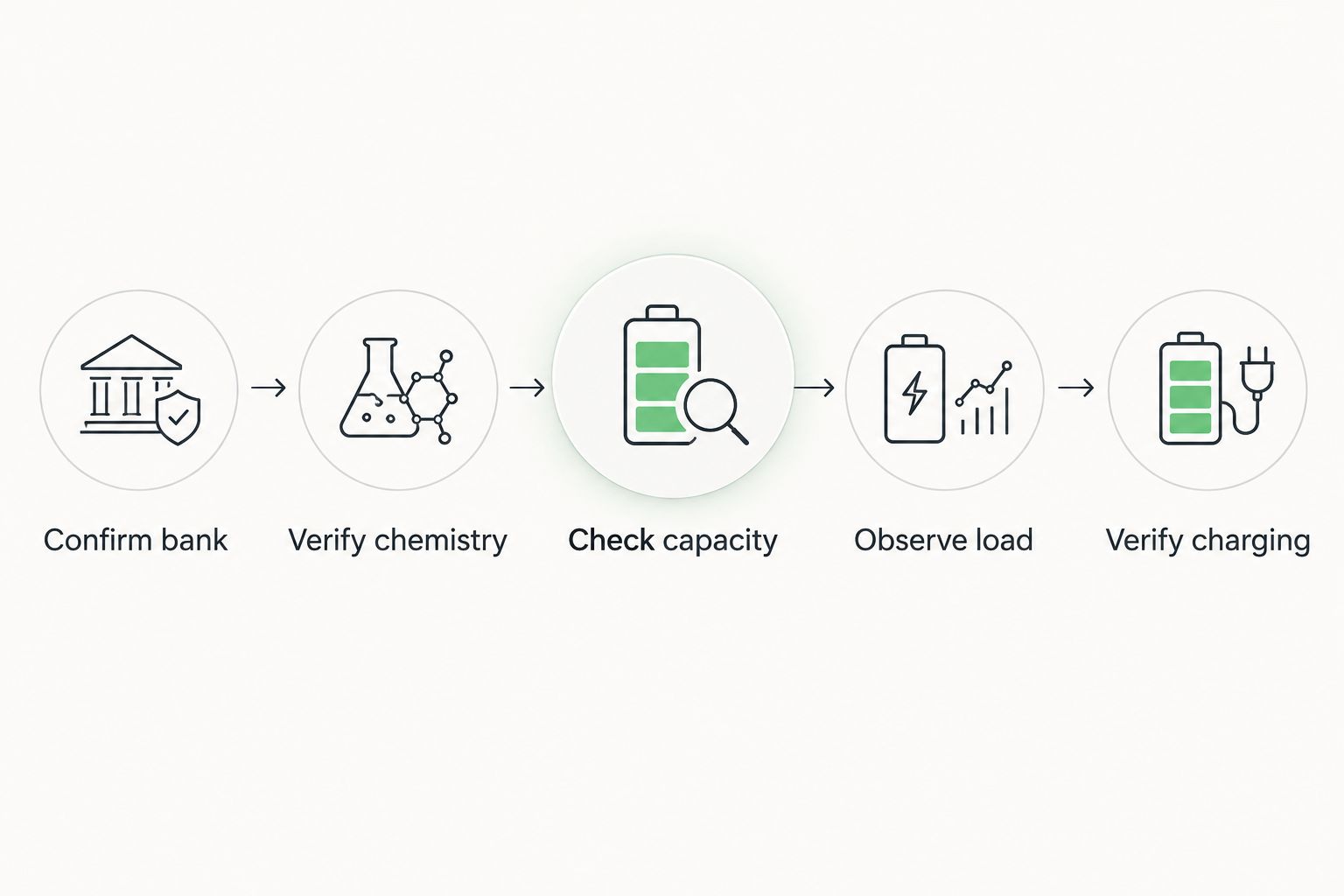
Trust a verified measurement before trusting a percentage. A shunt-based monitor estimates state of charge from measured current and configured battery information. An incorrect starting point or missed current can produce a convincing but inaccurate percentage.
Reconnection and everyday checks
- Close and reopen the app. Confirm that the device is still recognizable and that readings update after reconnection. A saved device entry is not proof of an active connection.
- Test your normal viewing location. Try the location where you actually expect to use the phone. Battery compartments, metal structures, and intervening materials can weaken a Bluetooth connection.
- Record your baseline. Save the monitor model, app name, battery configuration, and a screenshot of verified settings. Keep access credentials somewhere secure rather than in a publicly shared maintenance photo.
- Check alert support. If the monitor offers alerts, configure them using its documentation and the battery manufacturer’s guidance. Confirm whether notifications require the app to remain connected or running.
Expected result: You can reopen the app, identify fresh readings, and understand where local connectivity works.
For your 2026 maintenance record, distinguish settings you verified from settings inherited from a previous owner. That distinction prevents an old configuration from becoming an unquestioned reference later.
Check your RV battery when you are away
Best for unattended-RV checks: a manufacturer-supported remote-monitoring connection. Its benefit is access beyond Bluetooth range; its limitation is dependence on the gateway, RV power, and internet connection.
- Confirm that the exact battery monitor supports the proposed gateway or remote system.
- Follow the manufacturer’s procedure to connect the monitor to that system.
- Configure the required internet connection and account access.
- Check timestamps and connection status in the remote view.
- Turn off Bluetooth on the viewing phone and test from a separate internet connection to confirm the remote path works.
Expected result: You can retrieve fresh battery information without a direct Bluetooth connection to the RV.
Before leaving an RV unattended in 2026, test the actual remote workflow rather than assuming a working local app proves remote access. A last-known reading remains historical information when the gateway loses power or connectivity.
Troubleshooting
The monitor never appears
Confirm the model uses the installed app, verify monitor power, and check app permissions. Move closer and repeat discovery through the documented connection method.
If another phone is connected, disconnect it before retrying when the monitor’s manual specifies connection limits. Do not begin with a factory reset; a reset can erase settings without fixing power or permission problems.
The app finds a device but rejects the connection
Match the identifier again, then verify the PIN, account access, or ownership association. Close other active app sessions when the manufacturer’s instructions call for it.
Use the documented recovery procedure for forgotten credentials. Repeatedly trying guessed codes does not establish whether you selected the right monitor.
Voltage updates, but current does not respond
First confirm that the device actually measures current; a voltage-only sensor cannot supply shunt measurements. For a shunt-based monitor, check whether the chosen load belongs to the measured bank and whether charging is offsetting its consumption.
If current still does not respond, have the installation checked for a path that bypasses the shunt. Do not move high-current cables as an app troubleshooting experiment.
State of charge looks wrong
Verify bank capacity, chemistry-related settings, and the manufacturer’s synchronization requirements. Investigate measurement errors before manually changing the displayed percentage.
A phone reconnection fixes communication, not an incorrect capacity setting or missed current. Treat those as separate faults.
The reading freezes or remote access disappears
Check whether the app shows a stored reading, a lost local connection, or an offline remote gateway. Re-establish the relevant connection and verify a fresh timestamp or a response to a known load.
For remote monitoring, check gateway power and internet connectivity independently. Reinstalling the phone app does not restore an unpowered gateway.
Customize your workflow
Use Ownopedia’s RV diagnostic guidance to turn a connected monitor into a repeatable check: confirm fresh data, note whether charging is active, and compare the reading with the loads you expect. Keep the same sequence each time so changed conditions are easier to recognize.
The RV diagnostics for full-time digital nomads guide is a related next step for organizing broader troubleshooting around an RV you depend on daily.
For a 2026 handover checklist, document which battery the monitor measures, how the phone connects, and whether remote viewing has actually been tested. A clear connection record is more useful than an unexplained screenshot showing a full battery.
FAQ
How do I connect an RV battery monitor to my phone app?
Install the monitor manufacturer’s official app, enable Bluetooth, grant the required permissions, and follow its device-discovery procedure. Select the correct monitor and verify that the displayed readings are live.
Why does my RV battery monitor not appear in Bluetooth settings?
Some monitors connect inside their manufacturer’s app rather than through the phone’s Bluetooth pairing list. Check your exact model’s procedure, monitor power, and app permissions before attempting a reset.
Can I check my RV battery from home?
You need a supported remote-monitoring system to check an RV battery beyond direct Bluetooth range. Confirm monitor compatibility, gateway power, internet connectivity, and fresh data before relying on remote access.
Does every RV battery monitor app show state of charge?
No; displayed measurements depend on the monitor’s capabilities. A voltage-only sensor does not provide the same current-based measurement as a shunt-based battery monitor.
Why does the battery percentage look wrong after pairing?
Pairing does not validate battery capacity, synchronization, or current measurement. Check the installed bank’s specifications and the monitor’s setup procedure before trusting its state-of-charge estimate.
Can I connect more than one phone to the monitor?
Connection limits depend on the monitor model. Check the manufacturer’s instructions for simultaneous connections and disconnect another phone if the documented connection limit prevents access.
Should I reset the monitor when the app will not connect?
Check power, permissions, device identity, and credentials before resetting the monitor. Use a reset only through the documented procedure, with any configuration information needed to restore operation.
One last thing
A zero-current reading does not prove nothing is running. Charging current and load current can offset each other at the battery, so inspect which sources and loads are operating before diagnosing a failed monitor.
Ownopedia’s RV diagnostic guidance separates the reading from its explanation: first establish what the monitor measures, then decide what that measurement means.